The theme update notice might as well be labelled "mystery box". Sometimes nothing breaks. Sometimes a homepage that took three weeks to arrange is suddenly arranged the way it shipped from the store. The difference is not luck and it is not the theme: it is whether your customisations live in the places an update can reach.
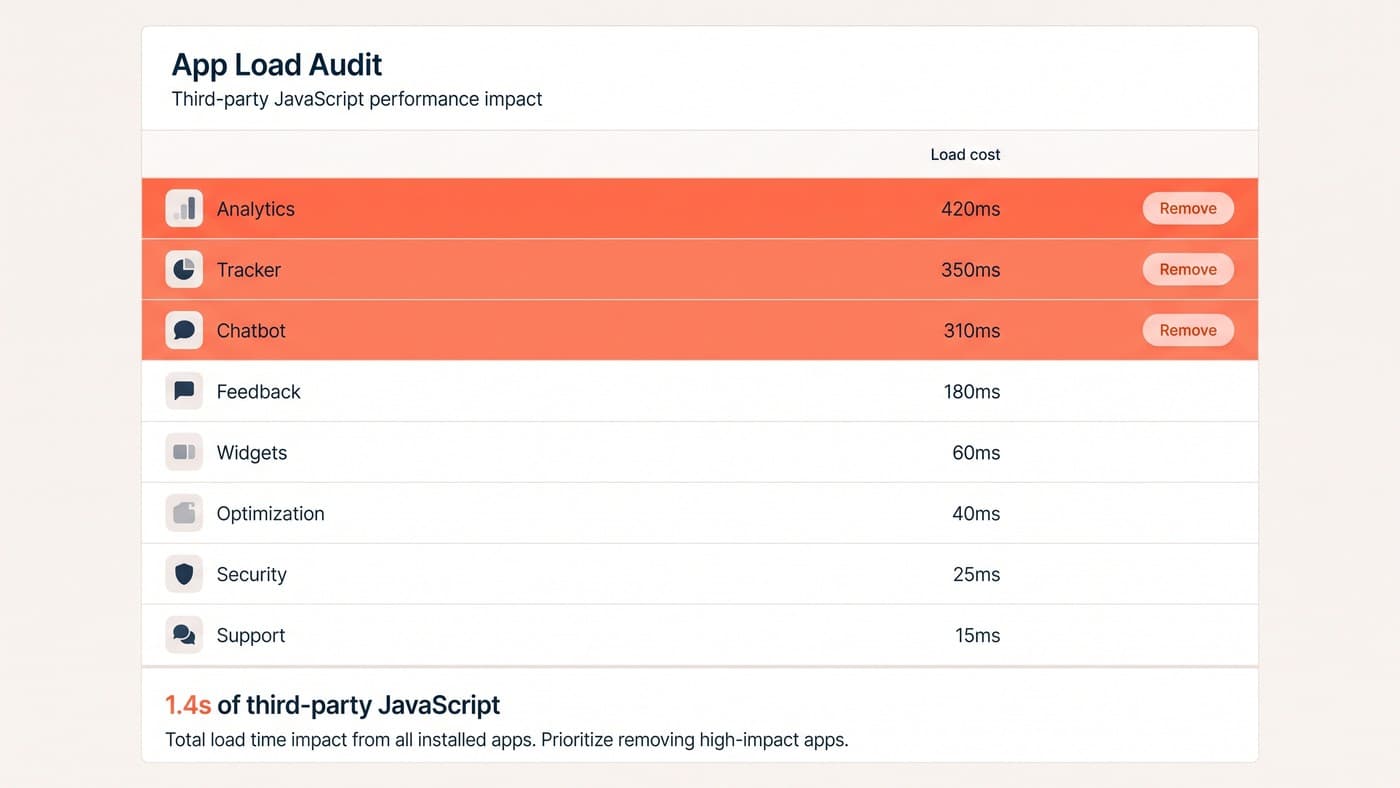
Modern Shopify updates behave far better than their reputation suggests, and most of the horror stories still circulating in forums describe a mechanism that has since changed. It is still worth knowing exactly what carries over and what does not, because the failure mode is silent. This post covers the update workflow only. Whether your theme should be carrying quite that many app embeds in the first place is the app audit’s question, not this one’s.
What the update button actually does
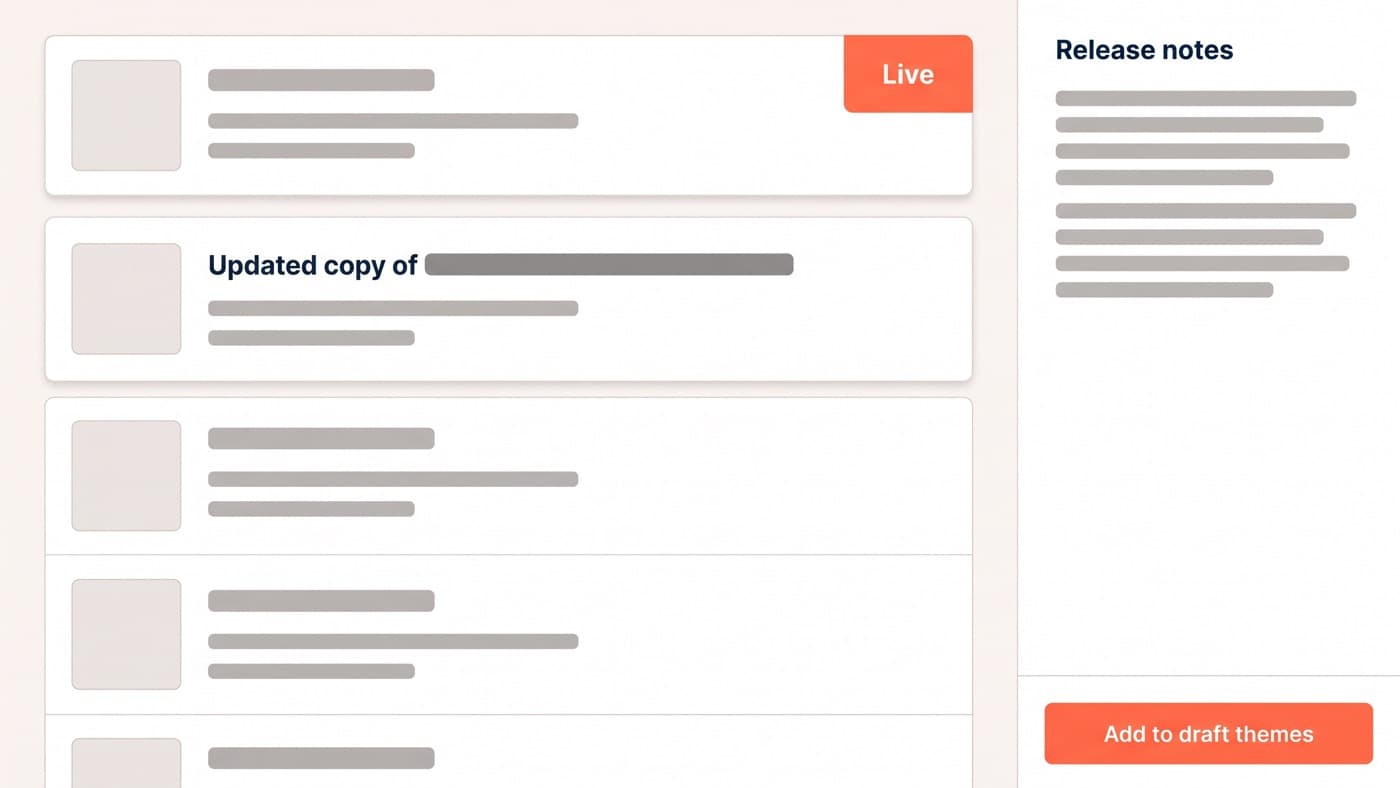
When a Theme Store theme has an update available, the version number in your admin is replaced by a notification. Opening it gives you the release notes and an "Add to draft themes" button, and the important word there is draft. Shopify does not overwrite your live theme. It builds a copy of the updated version, prefixed "Updated copy of", and hands it to you unpublished. Your storefront is untouched until you press publish, which means every frightening part of this process happens somewhere customers cannot see.
Into that draft, Shopify carries your theme settings, your section and block layout, your custom templates and your app embeds. Then it attempts your code edits. Edits that do not conflict with the update are merged in automatically and reported as such. Edits that do conflict are not merged: you get a notice saying the code edits could not be included, and moving them across is your job rather than the platform’s.
Two things are worth doing before you press anything at all. Take a copy of the live theme as a dated draft, so there is a known-good version to publish back if the new one misbehaves under real traffic. Then write down what your customisations actually are, in plain language rather than as file names, because the merge report tells you which files conflicted and only you can say which behaviours those files were responsible for. A conflict in a header file means very little on its own; a conflict in the file that renders your trade-account pricing means a great deal.
Three kinds of customisation, three different outcomes
Almost every update disaster is one of these three being mistaken for another. Sort your own work into the categories before you touch anything, because the sorting is the part that tells you how large the job is:
- Settings and layout. Anything done in the theme editor: colours, typography, section order, block content, custom templates. These carry over intact, and they are the bulk of what most merchants mean when they say "our design".
- Non-conflicting code. Edits to files the update did not touch, or to parts of files it left alone. These are merged automatically, and you will usually not notice them happening at all.
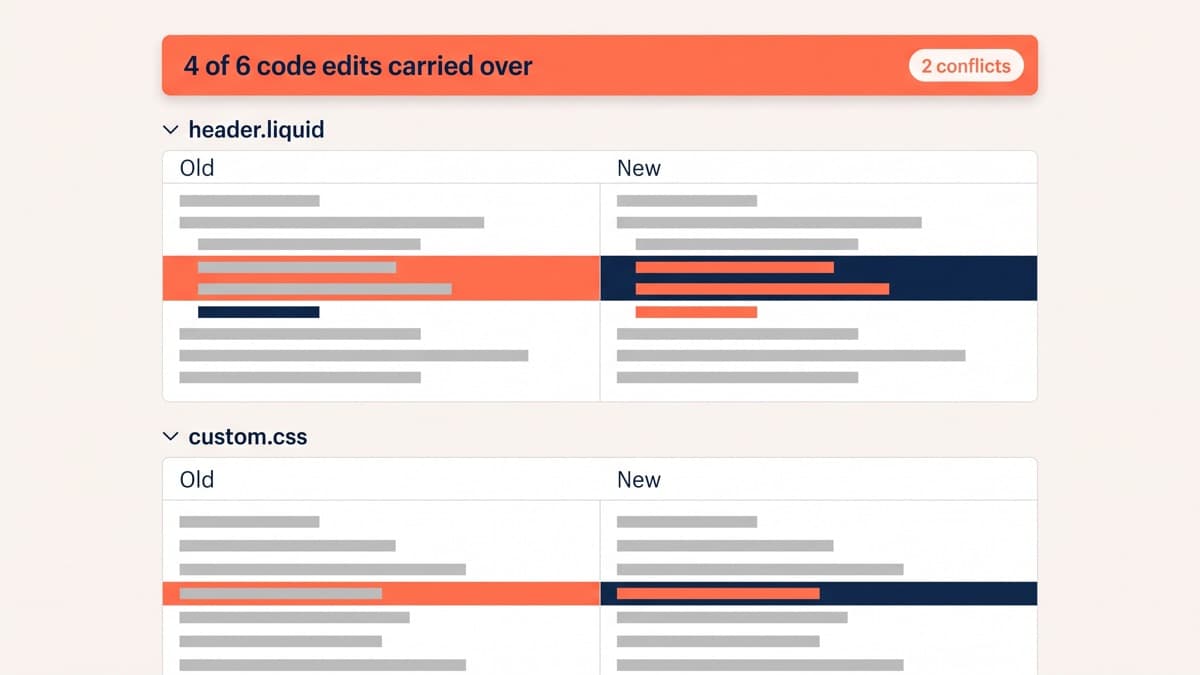
- Conflicting code. Edits inside files the update rewrote. These are the ones you migrate by hand, and they are almost always in the same few places: the header, the product template, and whatever custom stylesheet somebody added in year one.
The workflow that makes this dull
Read the release notes first, and read them for removals rather than for features. Then add the update to drafts and check the merge report before anything else, because it tells you the size of the job in one screen. A typical customised theme comes back with four of six code edits carried over and two conflicts, and those two are usually in header.liquid and a custom.css that has been quietly accumulating rules since launch.
Work the conflicts against the new files rather than pasting the old ones over them, since the update almost certainly changed the surrounding markup for a reason. QA the draft on a real phone as well as in desktop preview, walking a full path from a paid landing page through to the checkout, and pay particular attention to anything an app injects: app embeds carry over as settings while the markup they hook into may not have survived. Publish, then watch conversion and error rates for a week rather than declaring victory on the day.
If your theme did not come from the Theme Store
Updates are not supported for themes bought outside the Shopify Theme Store, which is a sentence worth reading before buying one. For those, an update means the vendor sends you a new copy and you migrate your work into it manually, with none of the merge assistance described above. That is a real recurring cost, paid at every release, and it belongs in the comparison at the moment a marketplace theme looks cheaper than a Theme Store one rather than two years later.
Making the next update boring
The permanent fix is to stop putting customisations where updates can reach them. Prefer theme-editor settings over hardcoded values, so a change is data rather than a diff. Put custom logic in your own new sections, snippets and stylesheets rather than editing core files, because a file the update does not know about cannot conflict with it. Where a core file genuinely must be edited, keep the edit small, comment it with what it does and why, and never spread one change across four files when one will hold it.
The other half is deciding when to update at all. Take the security and platform-compatibility releases promptly, batch the cosmetic ones, and never take an update in the fortnight before a trading peak. Skipping versions is acceptable; the merge does get harder the further behind you fall, which is an argument for a scheduled quarterly look rather than for taking every release the day it lands.
The reason any of this matters beyond tidiness is that an un-updatable theme quietly caps everything else. Teams stop taking updates, then stop editing the theme at all, then start solving problems by installing apps, and eventually the store cannot be changed without a rebuild. That is the state most replatforming projects are really escaping, and it began with three fragile edits nobody wrote down. Keeping a theme updatable is the same discipline that keeps a store testable, which is why it belongs in the same conversation as CRO engineering rather than in a maintenance ticket.
If your live theme is several versions behind and nobody can say what would break, the audit that answers it is ordinary Shopify development work: inventory the edits, sort them into the three categories, and cost the conflicts before anybody schedules the update. Get in touch if you would rather not find out the answer by pressing publish.